
Overview
AI Auto-List is a tool for pearldive users to quickly add images to a product for AI item identification and listing generation. This guide walks through setting up API tokens for your pearldive connection.
Before You Begin
- You must be an Admin or have access to Admin settings
- You must have an active pearldive account
- The Link app must be installed on your mobile device, running version 4.0.0 or higher
Step-by-Step Instructions
- Click the gear icon in the top right corner of Lister to navigate to the Settings page
- Click “Products” in the left navigation menu
- Click “Get Tokens” in the pearldive box at the top of the page to open the Integration Setup pop-up box
- Copy the API keys to your clipboard
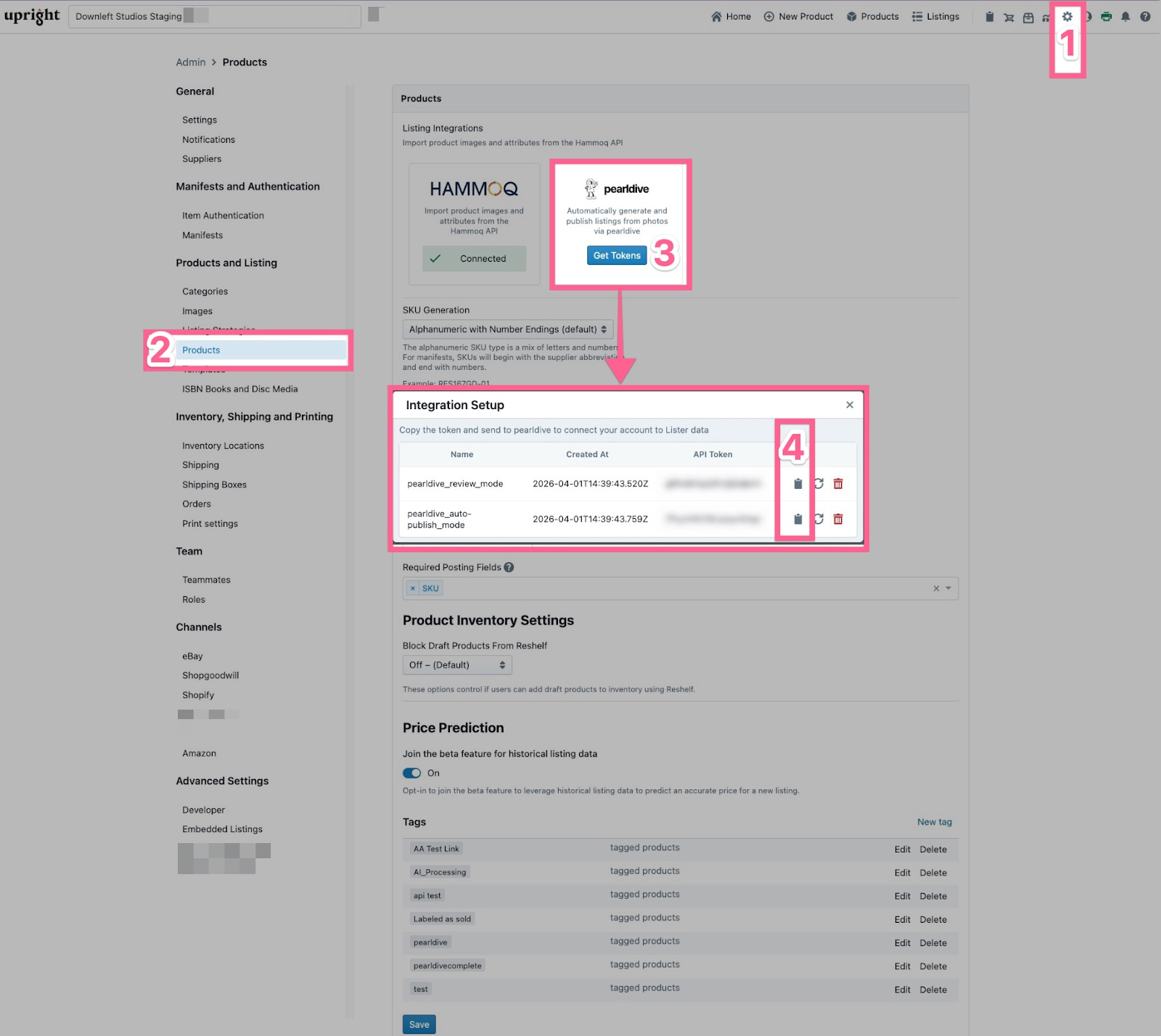
From there, send the names of both tokens and the API keys to your pearldive account manager to complete setup.
You can use this template for faster service. Paste over the X’s with your API keys:
|
Hi pearldive team, Below are our two API tokens for use with Lister. API Token Name: pearldive_review_mode API Key (XXXXXXXXXXXX) API Token Name: pearldive_auto-publish_mode API Key (XXXXXXXXXXXX) |
What to Expect
Once your connection is complete, Link’s AI-Auto List tool will be usable for creating AI listings. Click here to learn more about using AI Auto List in Link.
Common Issues & Troubleshooting
What does “pearldive_review_mode” mean?
- The API token “pearldive_review_mode” is used if you want all your pealdive-created listings to be reviewed by a human in the Pending Listings tabs of your Listings Manager. Learn more in our How to Review and List Pending Listings guide
What does “pearldive_auto_publish_mode” mean?
- The API token “pearldive_auto-publish_mode” is used to skip human review of pearldive-created listings and have them auto-publish to your marketplaces
How do I regenerate an API token?
- Tokens can be regenerated by clicking the cycle icon in the Integration Setup pop-up screen. Note that if the token is cycled, you will need to share the new token with your pearldive account manager
How do I delete an API token?
- Tokens can be deleted by clicking the trashcan icon in the Integration Setup pop-up screen. Deleting a token will prevent AI Auto-List from sending images to pearldive
When to Contact Support
Contact Support if:
- Your pearldive connection is configured but AI Auto-List is still unavailable