
Overview
This article explains how to send an authenticated item straight from Legitmark into a Lister listing, using the Legitmark app to capture photos and submit a certificate.
Use this process any time an item goes through Legitmark authentication before it is listed, so you can skip the step of re-photographing the item and manually rebuilding the listing in Upright.
If you have a pearldive account, adding the "pearldive" tag lets the dive fill in listing details automatically from the same authentication photos.
💡Not using pearldive yet? Click here to learn more!
Before You Begin
- You need an active Legitmark account linked to Lister. If you don't have a Legitmark linked to Lister, contact us at support@uprightlabs.com to get started
- The item must go through the Legitmark app for authentication before it is listed. Photos are only captured once, at the authentication station or photography station into the Legitmark app
- If you want pearldive to fill listing details automatically, you need an active pearldive account. Without one, the certificate and photos will still send to Upright, but no dive will occur. If you don't have a pearldive account, contact us at support@uprightlabs.com to get started
- If the item is already on a manifest in Upright, have the SKU or barcode available to scan at submission
- If the item is not manifested, you can scan a draft Product instead
Step-by-Step Instructions
- Open the Legitmark app at your Authentication or Photography station
- Start the listing with the authentication
- At submit, scan the Upright barcode or SKU
- If the item is already on a manifest, this links the certificate directly to that manifested product in Lister
- If it is not manifested, you can submit and create a draft product in Lister
- If you want pearldive to fill the listing, type "pearldive" into the tags field
- Once authentication is complete, open the certificate
- Confirm the SKU is correct
- Click Send to Upright
If the pearldive tag was applied and you have an active pearldive account, the dive starts automatically after send. No separate sign-in is required for this step.
What to Expect
- Legitmark writes the title, description, tags, certificate link, and photos directly onto the matching Upright product
- The Authentic tag is applied automatically, and the description includes a link to the certificate
- If pearldive was tagged and your pearldive account is active, the listing will be filled in after the dive completes
- If pearldive was not tagged or you do not have an account, the product still updates in Upright with the certificate and photos. It just will not be filled in by a dive
- Any post-confirmation steps for a dive still need to be completed in Upright
Common Issues & Troubleshooting
You don't see the "Link to this product on Upright" or "Open in Upright" options in your legitmark app: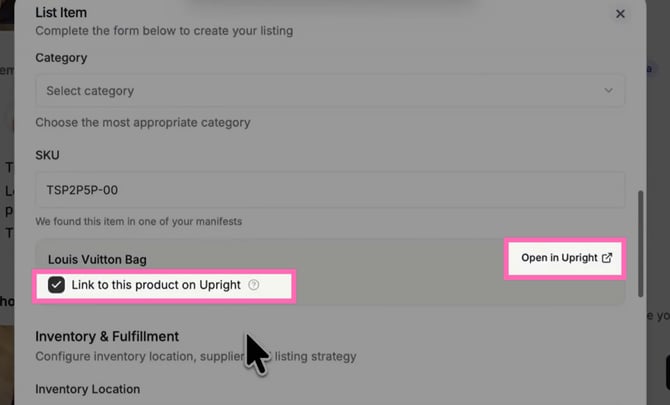
-
Your Legitmark account isn't linked to Upright. contact us at support@uprightlabs.com to get started
The item isn't linking to the correct product in Upright
- Confirm the correct SKU or barcode was scanned at submit
- Check whether the item was on a manifest at the time of submission
- If it wasn't manifested, check the Drafts filter of the Products manager for the draft product
pearldive isn't filling in the listing detailss
- Confirm the pearldive tag was added before submitting
- Confirm you have an active pearldive account. If you don't, contact us at support@uprightlabs.com to get started
- Check that the dive has finished. Fields will not populate until the dive completes. Listings which have completed the dive will have a pearldivecomplete tag
Listing photos look wrong or are missing
- Authentication photos from the Legitmark app are used as the listing photos, so confirm the photos were captured correctly during authentication
- Photos are not recaptured in Upright, so any issue needs to be corrected at the authentication step. If you want to add additional photos, you can add those to the product in Upright Lister
When to Contact Support
Contact support if:
- The certificate sends but the Upright product does not update
- pearldive is tagged and your account is active, but the dive does not begin
- You see an error you cannot clear during send or linking