
Overview
AI Auto-List is a tool for pearldive users to quickly add images to a product for AI item identification and listing generation. This guide walks through using AI Auto-List in Link.
📌Note: A pearldive account is needed to use this tool. Click here to learn more about pearldive AI tools.
Before You Begin
- You must have an active pearldive account
- The Link app must be installed on your mobile device
- Your pearldive connection must be configured in your admin settings
- You need access to a camera or existing photos on your device — a minimum of 2 photos is required per item
Step-by-Step Instructions
Adding Details to an Existing Draft Product
These steps are for users who manifest or create draft products for every item.
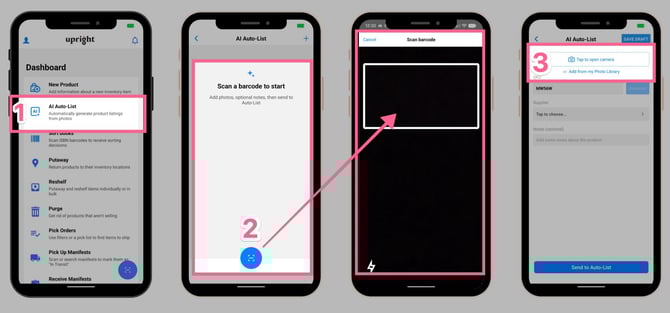
- Open Link and tap the AI Auto-List button on the dashboard
- Scan a draft product barcode
- Add pictures by tapping to open the camera or uploading from your device library
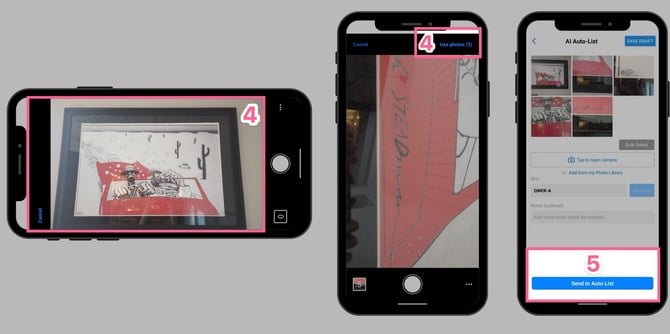
- Add at least 2 pictures, then tap “Use photos” in the top right corner when done
- We recommend adding at least 4 pictures of an item from multiple angles and showing any close-up identifying marks
- Save the details by tapping the blue “send to auto-listing” button at the bottom of the page. From there, you’ll be prompted to scan another barcode or cancel to return to the dashboard
Creating a New AI Listing Without a Draft Product
These steps are for users who don’t manifest or create draft products.
-
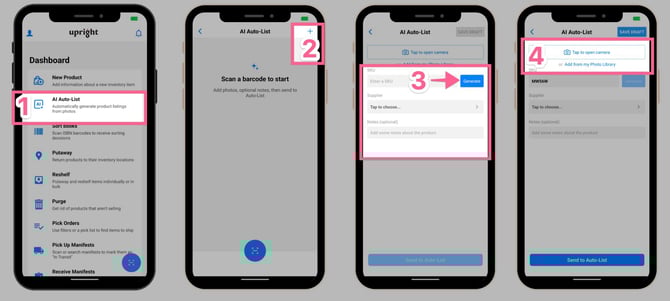
Open Link and tap the AI Auto-List button on the dashboard
- Tap the plus symbol in the top right corner of the screen
- Generate a SKU (required) and select a supplier (optional)
- Add pictures by tapping to open the camera, or uploading from your device library
- Add at least 2 pictures, then tap “Use photos” in the top right corner when done
- We recommend adding at least 4 pictures of an item from multiple angles and showing any close-up identifying marks
- Save the details by tapping the blue “send to auto-listing” button at the bottom of the page
What to Expect
After saving an item:
-
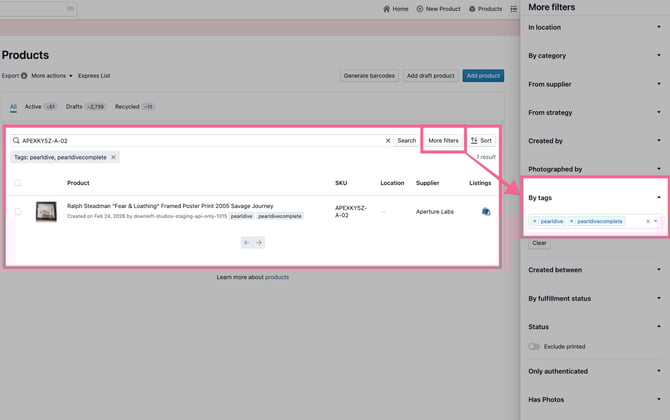
Once an item is saved, it will appear in your Products manager and can be searched by SKU or filtered to show all pearldive-tagged items:
- pearldive will process the images and generate listing details using AI
- Depending on your admin settings for your pearldive connection, the listing will either be auto-created or will appear in your Pending Listings manager tab for review
⚠️Important Note: All listings are tagged by pearldive with the 'diving' tag while they are being published, and then tagged with the 'pearldivecomplete' tag after they are posted. Please don't edit or delete these tags.
Common Issues & Troubleshooting
The AI Auto-List button is not visible on the dashboard
- Confirm your pearldive account is active and connected in admin settings
- Ensure your Link app is updated to version 4.0.0 or higher
- Log out of Link and log back in to refresh your permissions
I cannot scan a draft product barcode
- Confirm the draft product exists in your system before scanning
- Ensure the barcode is not damaged and that your device camera is functioning correctly
The "Use Photos" button is not available
- You must add a minimum of 2 photos before this button becomes active
- Verify that the photos uploaded or captured are not corrupted or empty
My listing did not appear after saving
- Check your Products manager and filter for pearldive-tagged items.
- If auto-publish is disabled, check the Pending tab of Listings manager for items awaiting review
- Allow a few minutes for pearldive to complete AI processing before expecting results
I want listings from AI Auto-List to go to Pending in the Listings manager so an admin has to review them before they go live
If you want to review AI Auto-List listings before they're published:
-
Create a Custom Role with Training Mode activated
-
Head to Admin settings > Developer
- Next to the specific pearldive API Token, click the pencil icon to edit
- Select the role that has Training Mode activated, and Save
Listings will then go to Pending tab of each marketplace's Listings manager to be approved.
📌Note: You will need to review and approve listings from each marketplace when concurrent listings are selected.
When to Contact Support
Contact Support if:
- You receive an error message you cannot clear
- The app does not respond after completing these steps
- Your pearldive connection is configured but AI Auto-List is still unavailable
- Listings or inventory data appear incorrect after completing this process